How to Run AI Locally: The Complete Guide
Can you run AI locally?
Yes. You can download an AI model to your own computer and run it there - no account, no API key, no subscription, and no internet connection once the file is on disk. On an Apple Silicon Mac it takes two commands and about five minutes.
This is a genuinely different deal from a cloud free tier. A free Gemini API key costs nothing in money but comes with a daily quota and a data trade-off: on the free tier, your content may be used to train the model. Running locally has neither. There is no quota, and nothing you type ever leaves the machine, so there is nothing to train on.
The one real constraint is memory. The model has to fit in your RAM, which means your hardware decides how capable a model you can run. That is what the rest of this guide is actually about.
What running AI locally actually means
A language model is a file - a few gigabytes of numbers. Running AI models locally means that file sits on your disk, and your own processor does the arithmetic that turns your prompt into a response.
There is no request leaving your machine. No server receives your text, no provider logs it, and no rate limiter counts it. Pull the network cable and it still works.
The trade-off is equally concrete. A data centre can hold a model with hundreds of billions of parameters in memory. Your laptop cannot. So local models are smaller, which mostly costs you reasoning depth on hard problems - and mostly does not matter for the writing tasks people actually run all day.
What you need to run an LLM locally
Three things, in order of how much they matter.
- RAM is the binding constraint. The model has to fit in memory. If it does not, your system swaps to disk and generation slows to a crawl - not a little slower, unusably slower.
- A GPU helps, but on a Mac you already have the right one. Apple Silicon uses unified memory, so the GPU addresses the same pool of RAM as the CPU. Any M-series Mac runs models well. On Windows or Linux a discrete GPU matters far more, because the model needs to fit in the card's VRAM to run at full speed. CPU-only inference works anywhere and is slow everywhere.
- Disk space, briefly. A quantized model is roughly 2GB to 5GB for the sizes most people run. Keep two or three and you are still under 20GB.
The rule of thumb for memory: a 4-bit quantized model needs about 0.6GB of RAM per billion parameters, plus headroom for macOS and whatever else you have open. An 8B model is therefore around 5GB of weights and wants a 16GB machine to be comfortable.
Quantization is what makes this possible - it stores the model's numbers at lower precision, roughly halving memory use for a small quality cost. The default 4-bit (Q4) quantization is the right choice for almost everyone. Do not go hunting for higher precision unless you have measured a problem.
How to run AI locally on a Mac
Ollama is the shortest path to run LLMs locally on macOS. It handles downloading, quantization, and serving behind one command.
There are two ways to install it. The app download is the one to use if you have any doubt - it is a normal Mac app install and it sets everything up for you.
Install Ollama from the website (recommended)
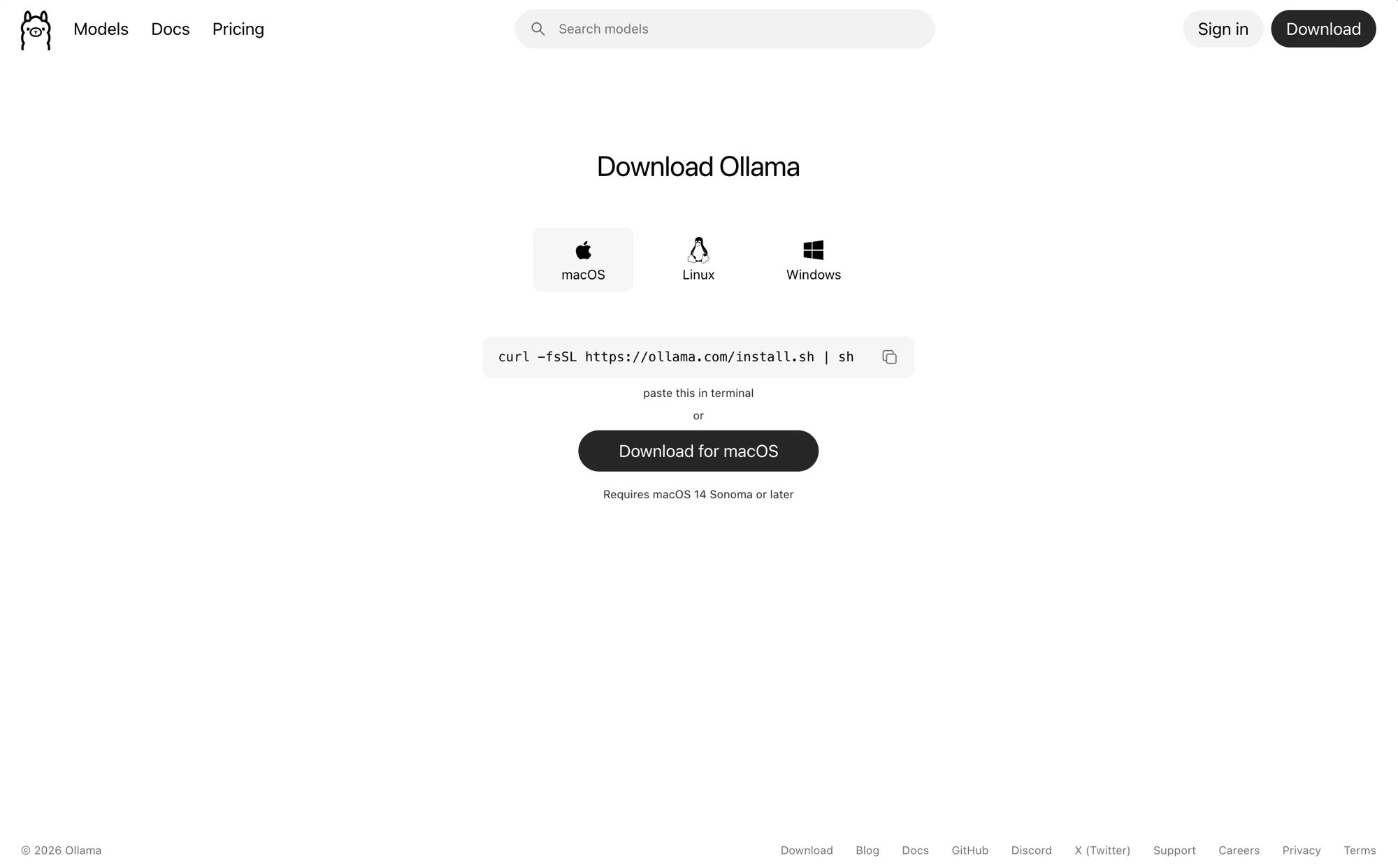
1. Download it. Go to ollama.com/download (opens in new tab) and click the macOS download. You get a standard .dmg file - no account, no sign-up.
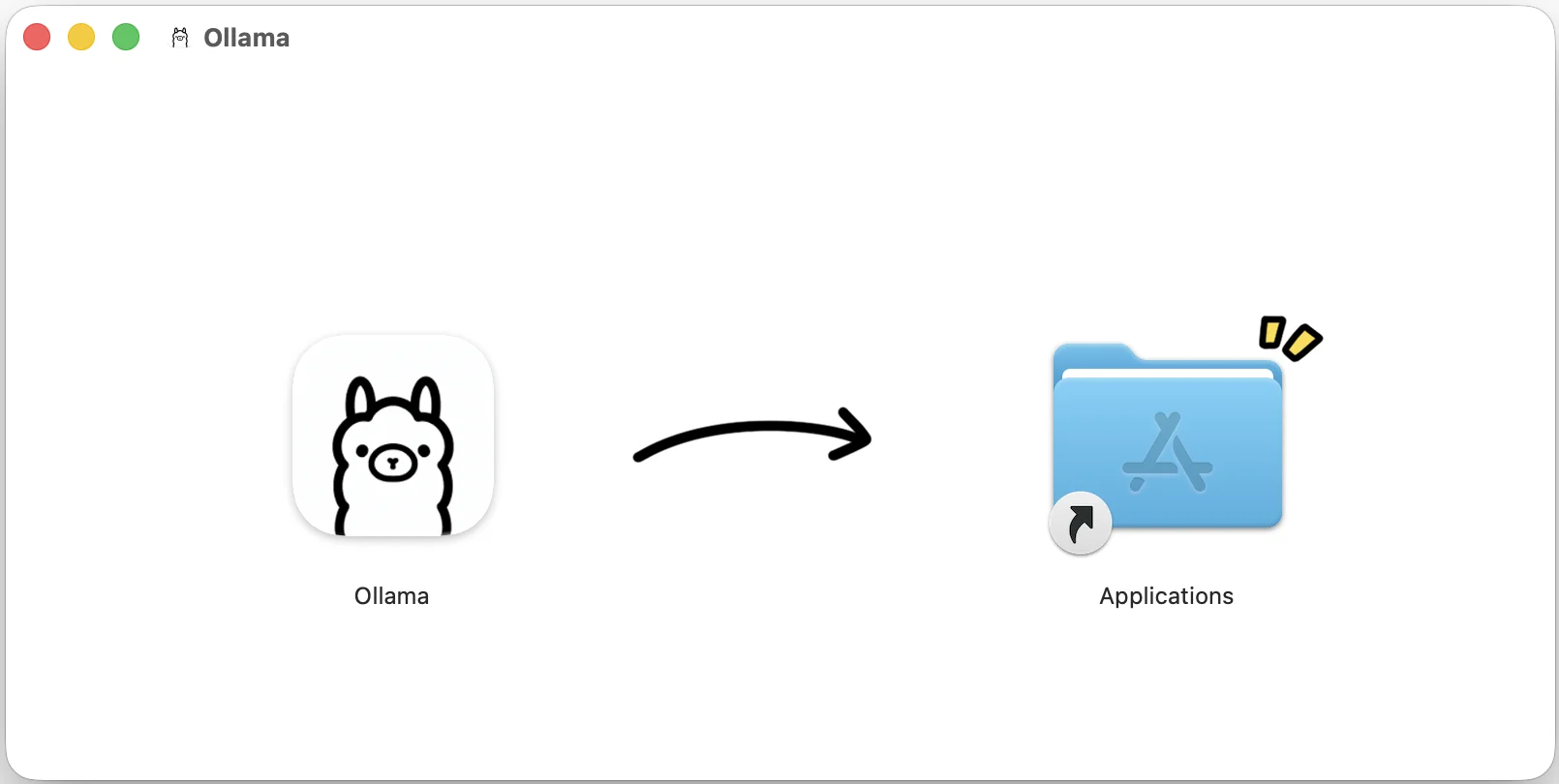
2. Install it. Open the downloaded .dmg and drag Ollama into your Applications folder, exactly like any other Mac app.
3. Launch it once. Open Ollama from Applications. The first launch installs the ollama command-line tool and starts the local server in the background. From here on, Ollama starts with your Mac and stays out of the way.
The app is now running, but it has no models yet. That is the next step, and it is the part people get stuck on.
Install Ollama from the command line
If you would rather not install the app, Homebrew works:
brew install ollamaOne important difference: Homebrew installs Ollama but does not start the server for you. The app download does. So after installing this way you have to start it yourself, and keep it running:
ollama serveIf you skip that step, every request fails with connection refused - which is the single most common reason a local setup appears broken. Leave that terminal open, or use the app download instead.
Install a model - this part is terminal only
Installing a model is done from the command line. There is no way to do it in the Ollama app. The app lets you pick between models you have already installed; it will not download one for you. This trips people up constantly, because the app looks like it should handle it.
One command pulls the model and drops you straight into a prompt:
ollama run qwen2.5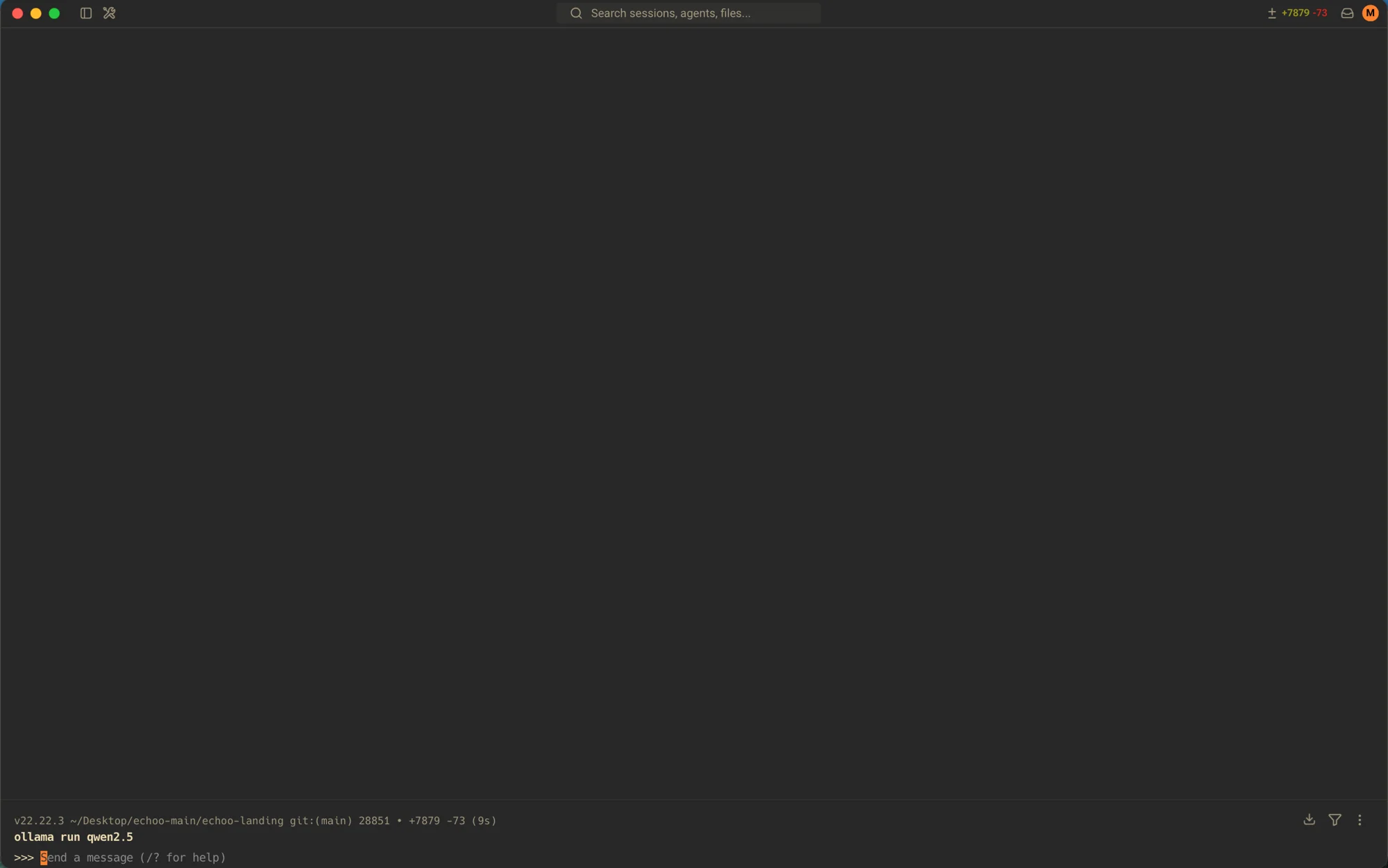
The first run downloads a few gigabytes. Every run after that is instant and offline.
If you just want the download without the chat prompt, use ollama pull qwen2.5 instead. To see what you have installed, run ollama list.
Ollama serves an API on localhost:11434 in the background, which is how other apps on your Mac talk to it. Check it is alive with:
curl http://localhost:11434/api/tagsNow use it in the app
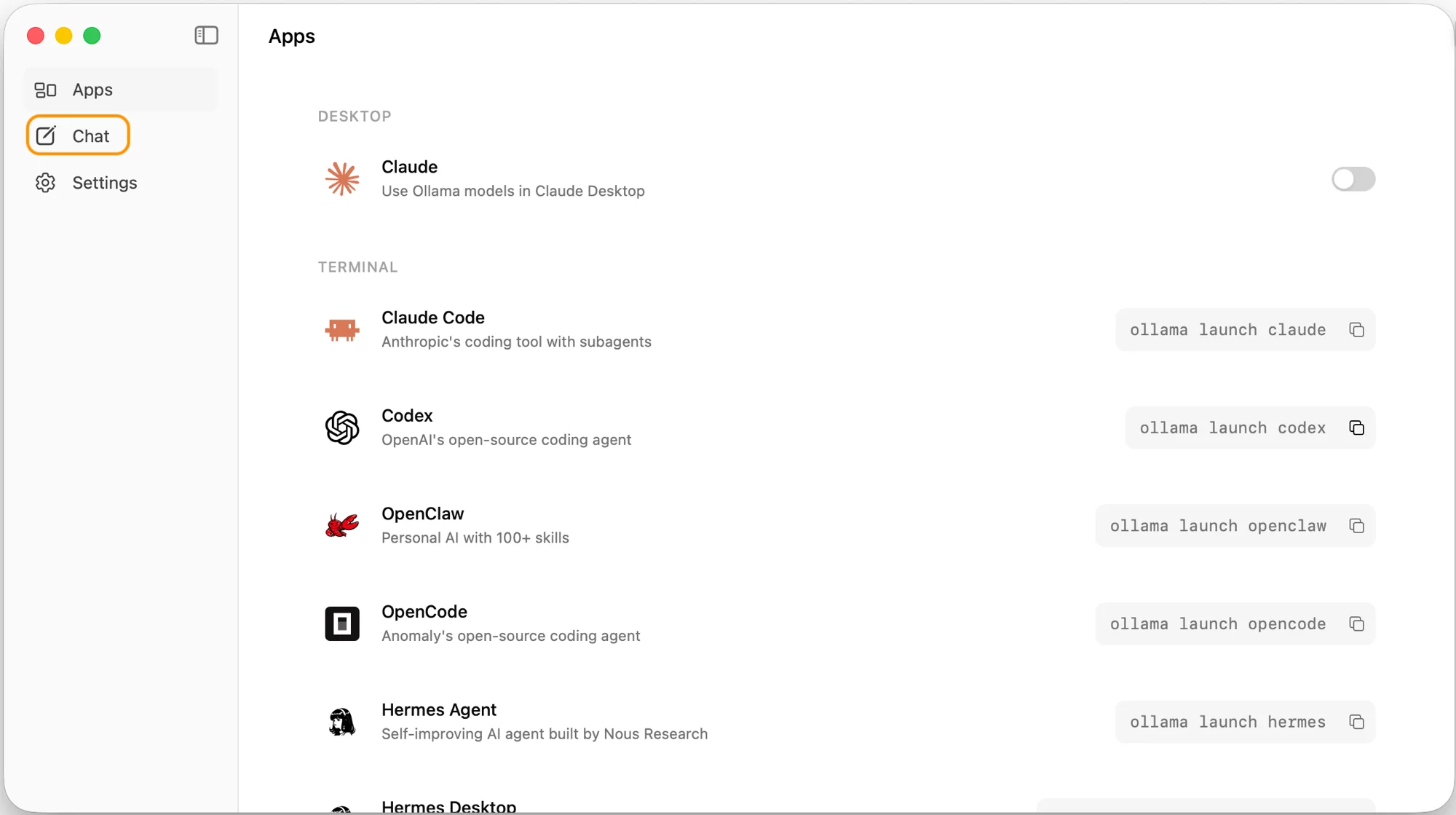
With a model installed, the app becomes useful. Open Ollama and click Chat in the sidebar - the Apps tab it opens on is just for wiring Ollama into coding tools, and you do not need any of it here.
In Chat, open the model dropdown. This is the one screen where it is easy to accidentally defeat the entire point of this guide.
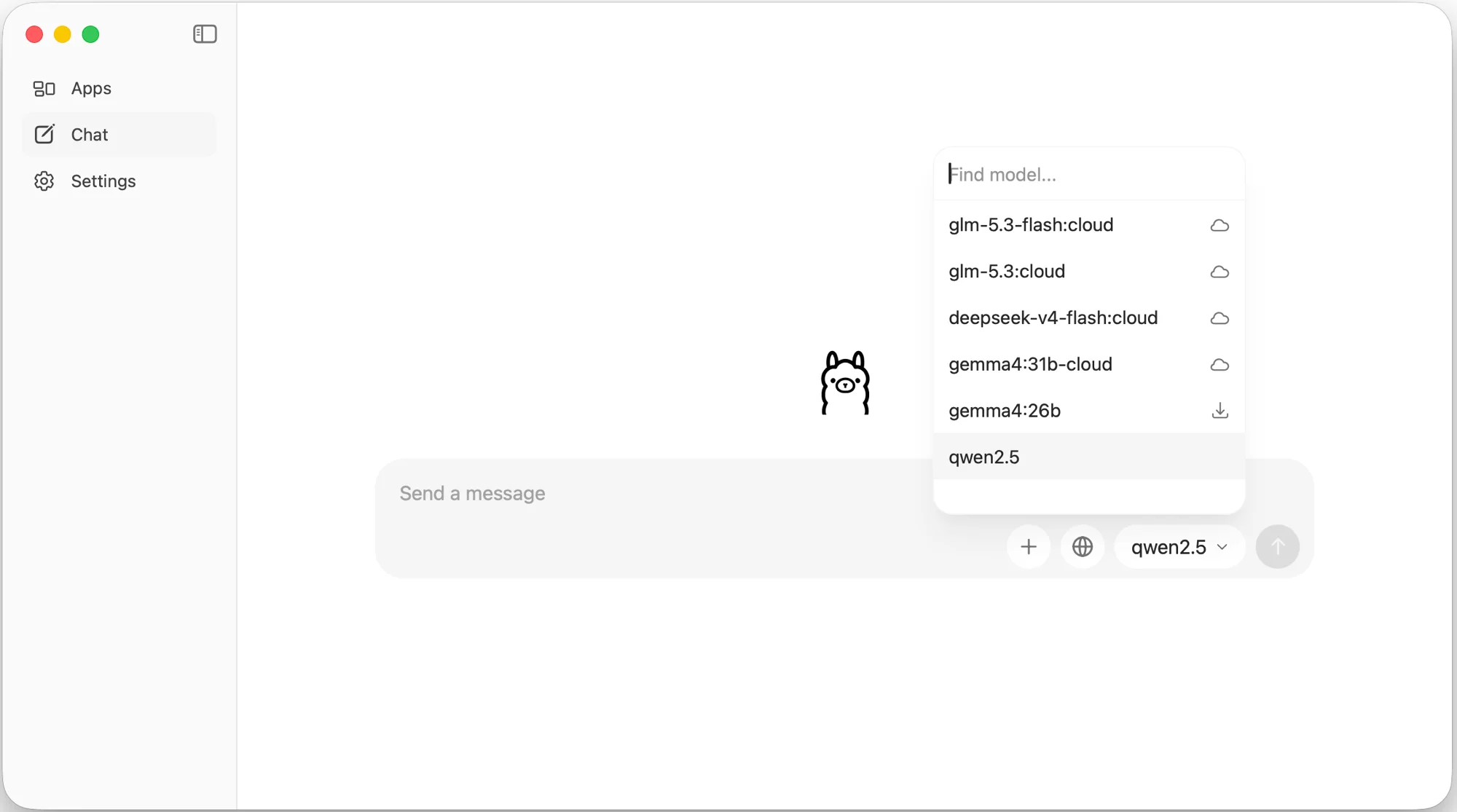
Look at the icon on the right of each row. A cloud icon means the model does not run on your Mac at all - it runs on Ollama's servers, and your text is sent there like any other hosted API. Entries such as glm-5.3:cloud, deepseek-v4-flash:cloud and gemma4:31b-cloud are all remote.
If a model name ends in :cloud, it is not running locally. That is the whole rule.
The model you installed from the terminal - qwen2.5 here - appears in this list with no cloud icon. Pick it, and you get a chat window that works with no account and no network.
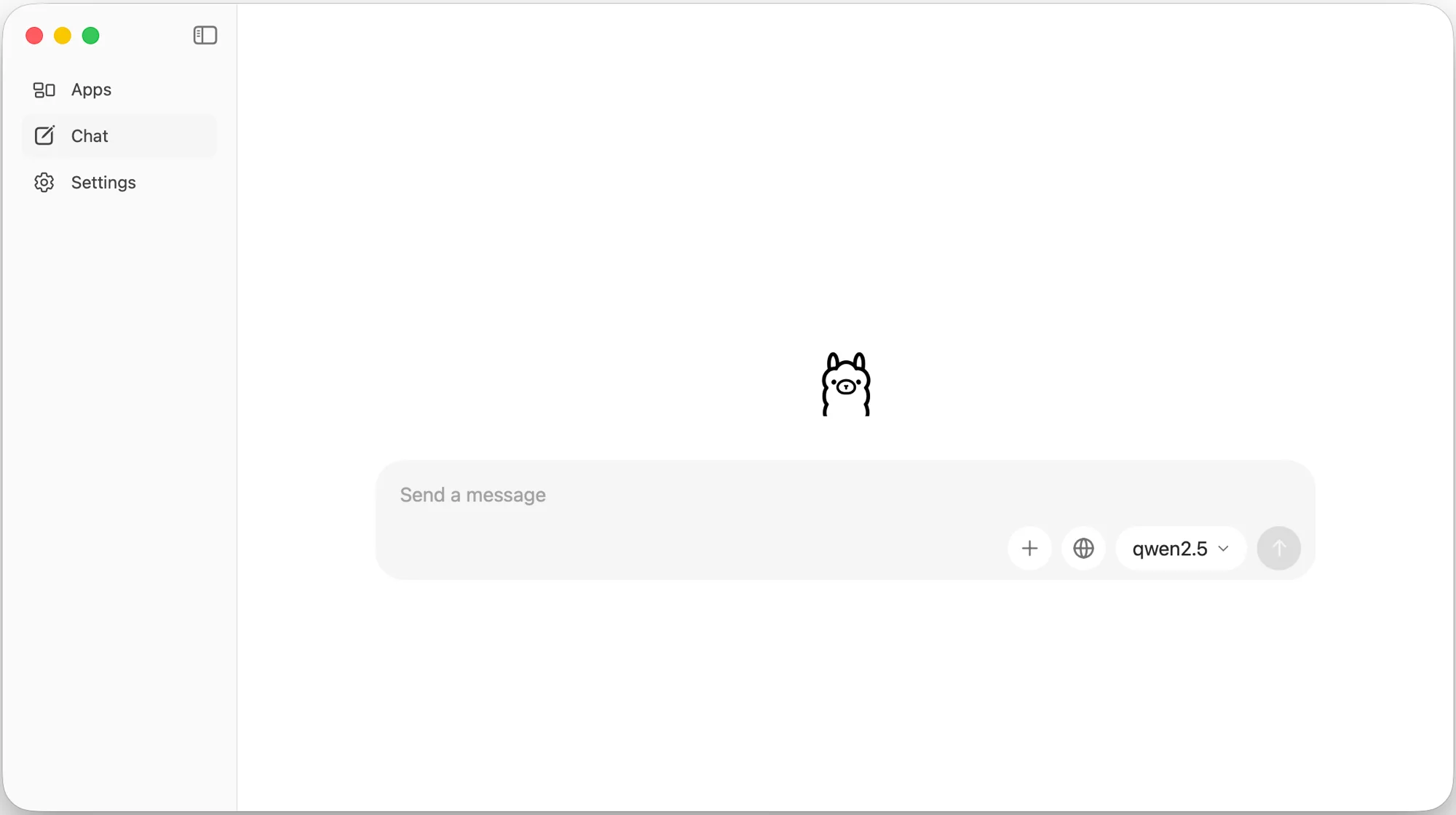
One detail worth knowing if you last tried this a while ago: Ollama moved its Apple Silicon backend to MLX in version 0.19 in March 2026, and inference on M-series Macs got materially faster. If your impression of local AI is "too slow to bother", it is worth re-testing on a current version.
Which local AI model for how much RAM
Match the model to your memory, not to a leaderboard. A smaller model that fits beats a larger one that swaps, every time.
- 8GB - Llama 3.2 3B. About 2GB on disk and ~3GB in use. Genuinely capable for grammar, rewriting, and translation, and the only sensible choice at this tier.
- 16GB - Phi-4, or an 8B Llama. This is the sweet spot where a local model stops feeling like a compromise for everyday writing work. Gemma 12B is a strong general assistant here too.
- 32GB - Qwen3 14B, reaching up to 32B. Qwen3 currently leads the quality benchmarks among models that fit on consumer Apple Silicon.
- 64GB and above - a 70B model such as Llama 3.3 70B. Noticeably better reasoning, and it needs the machine to itself.
Model names move fast. Check ollama.com/library (opens in new tab) for current tags rather than trusting any list, this one included.
Can you run ChatGPT locally?
No, and it is worth being blunt about why. ChatGPT is a hosted product. OpenAI has never released its weights, so there is no file to download and no way to run it on your own hardware. Any site offering "ChatGPT offline" or a downloadable ChatGPT is either repackaging someone else's open model or harvesting your credentials.
What you *can* run locally is an open-weight model that does the same class of work: Llama, Qwen, Gemma, Mistral, Phi. These are released deliberately for exactly this purpose. They are not GPT-5, but for rewriting an email they are indistinguishable in practice.
The same applies to Claude and Gemini - hosted products, no downloadable weights. If you want a specific commercial model, you need its API. If you want AI that runs on your machine, you want an open-weight model.
How to run AI offline, with no internet at all
Once the model file is downloaded, the network is optional. Turn off Wi-Fi and run ollama run qwen2.5 again - it answers exactly as before, because the computation is happening on your own chip.
This is worth actually testing rather than assuming, because it is the clearest proof that nothing is being sent anywhere. Disable your network, run a prompt, watch it work.
The only things that still need a connection are downloading a new model and updating Ollama itself.
Using a local model for real work
A terminal chat prompt proves it works. It is not where the value is - retyping your text into a terminal to get a rewrite is slower than just doing the rewrite yourself.
The useful version is having the local model available in whatever app you are already writing in. That is what Echoo does: select text anywhere on your Mac, press a keyboard shortcut, and the transformation happens in place.
Open Settings and go to the Providers tab. Under AI Provider choose Internal - that is the option for anything speaking a local, OpenAI-compatible endpoint, which is what Ollama serves. There is no separate "Ollama" button to look for.
Leave Host as localhost and Port as 11434, then press Connect.
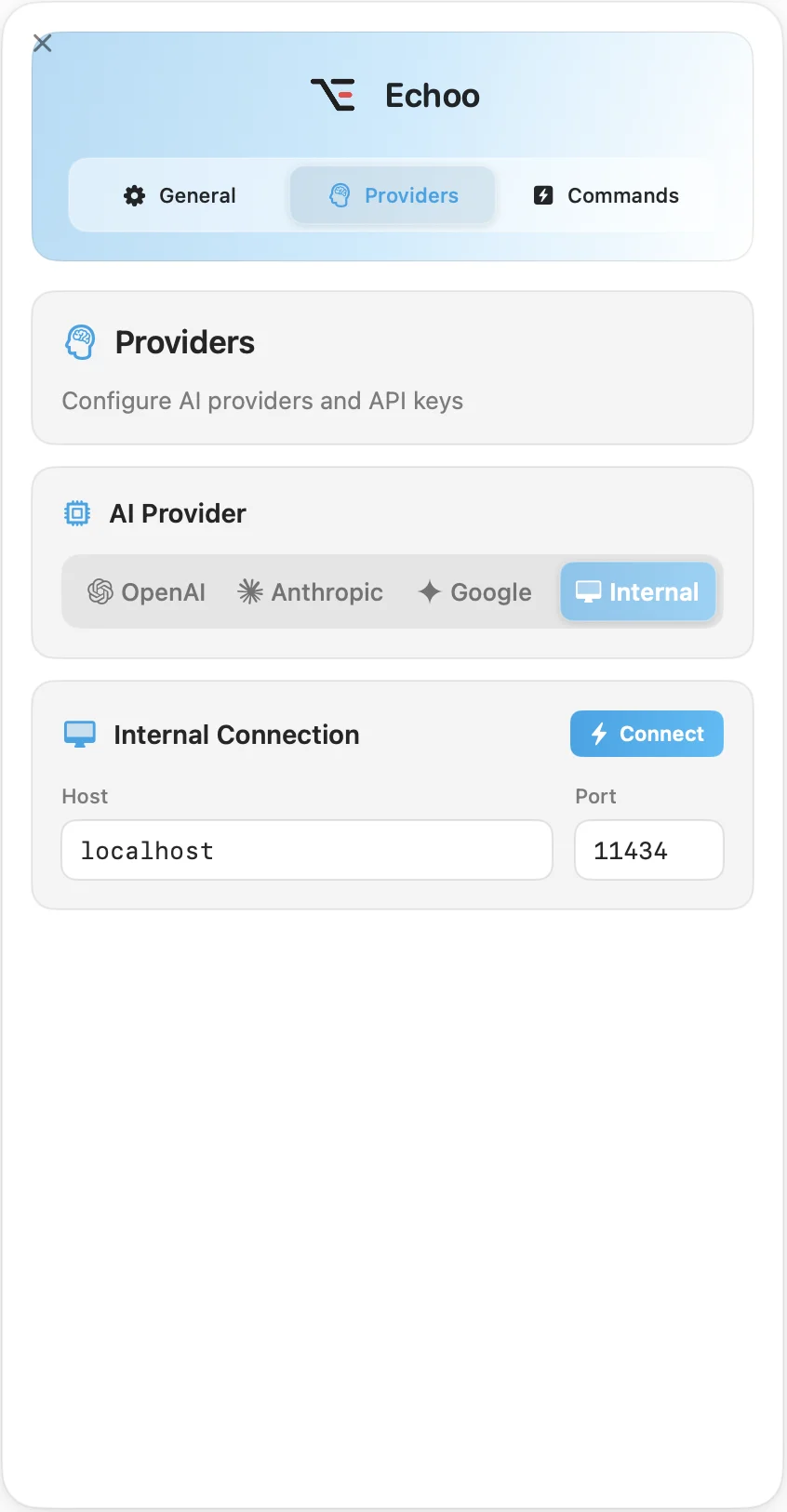
That is the whole connection. No API key field, because there is no key - there is nothing on the other end to authenticate to.
Now the useful part. In the Commands tab, each command carries its own provider, so you decide per shortcut what runs locally and what does not. Open a command and set its Provider to Internal:
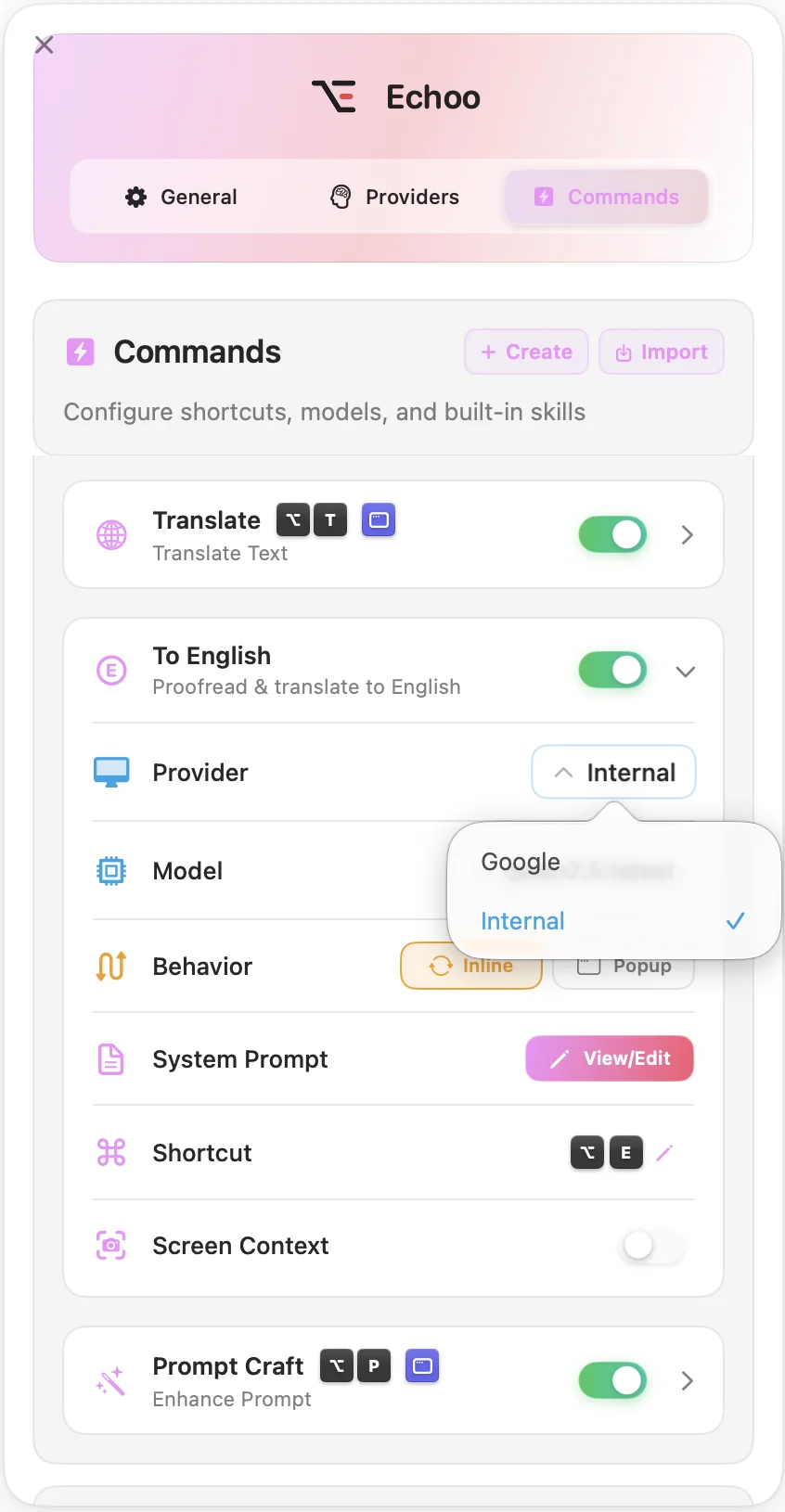
Then pick which of your downloaded models that command should use:
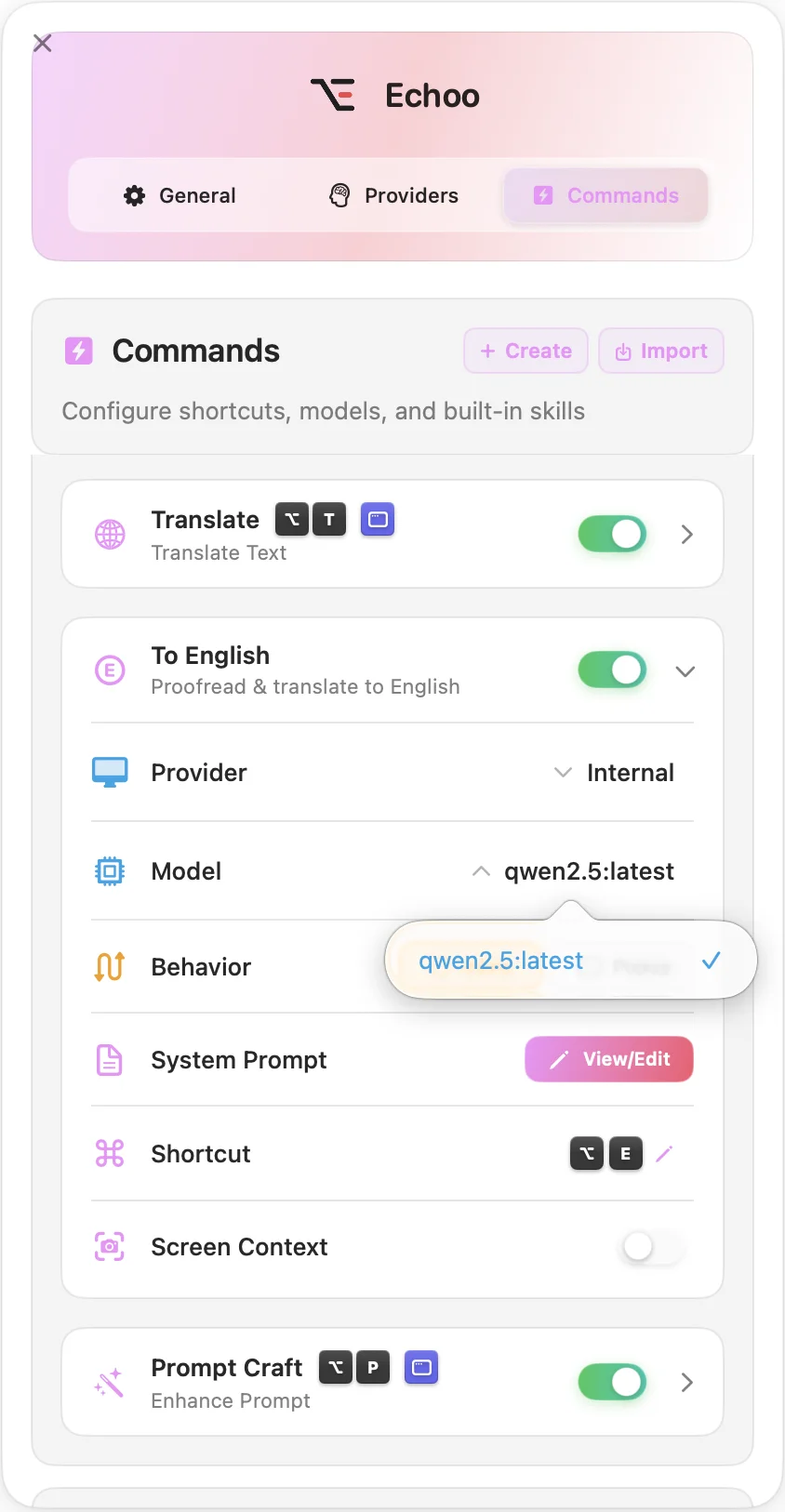
The model list here is whatever Ollama has actually pulled, which is why qwen2.5:latest shows up - it is the model downloaded earlier in this guide.
From that point, any text you run through that command stays on the Mac. No key is stored because none is needed, and there is no provider on the other end to log anything.
Echoo also supports LocalAI and LiteLLM through the same Internal option, if you already run one of those.
Local AI vs cloud AI: what each is actually good at
Do not treat this as a loyalty test. The honest split, after using both daily:
Local wins at grammar correction, rewriting, tone changes, translation, and summarising - the high-volume, low-difficulty work that makes up most real usage. It also wins outright on anything confidential, because privacy stops being a policy question and becomes a physical fact.
Cloud wins at hard reasoning, long documents, code architecture, and anything needing current knowledge. A frontier model is still clearly better at genuinely difficult work, and 1,000 free requests a day from a Gemini API key costs nothing either.
The practical answer is both. In Echoo each command can use its own provider, so a proofreading shortcut can run locally while a complex analysis command goes to a cloud model. Route by sensitivity: anything you would not paste into a public document goes local.
Is running AI locally private and safe?
It is the most private option available, and the reason is structural rather than contractual. With a cloud provider you are trusting a data-handling policy - one that differs between free and paid tiers, and that can change. With a local model there is no request to make a policy about.
That distinction matters most for the categories where it is genuinely risky to get wrong: client work, legal documents, medical information, HR material, and anything under NDA. For those, local is not the cautious option, it is the correct one.
On safety: models pulled from Ollama's official library are just weight files, and they do not execute anything. Stick to the official library and the mainstream model families rather than random weights from a forum.
Troubleshooting
connection refused on localhost:11434** - Ollama is not running. If you installed with Homebrew, this is expected until you run ollama serve yourself. If you installed the app, open Ollama from Applications and leave it running.
Generation is extremely slow - almost always the model is too large for your RAM and the machine is swapping. Drop to the next size down. A 3B model that fits will beat an 8B model that does not, by a wide margin.
model not found** - the tag is wrong or the pull did not finish. Run ollama list to see what you actually have, then ollama pull <name> again.
Long pause before the first word, then normal speed - that is the model loading into memory. It happens on the first request after a while and is expected. Subsequent requests are fast while it stays resident.
Quality is worse than you hoped - check which model you are actually running with ollama list. Then be honest about the size: if you are on a 3B model, sharpening your prompt will help more than switching models will.
It works, but it is suspiciously fast and needs Wi-Fi - you picked a cloud model. Check the name: anything ending in :cloud, or showing a cloud icon in the picker, runs on Ollama's servers rather than your Mac. Switch to a local model.
The Mac gets hot and the fans spin up - normal under sustained inference. Local AI uses your hardware, and that is the deal.
Frequently asked questions
Can you run AI locally?
Yes. Open-weight language models run entirely on your own computer with no account, no API key, and no internet connection. On an Apple Silicon Mac the setup is two commands and takes about five minutes. The limit is memory: the model has to fit in RAM, so your machine decides how large a model you can run, not your budget.
Is running AI locally free?
Yes, genuinely and permanently. There is no key, no quota, no per-token cost and no daily cap. You pay in electricity and disk space. Unlike a cloud free tier there is also no data trade-off - nothing you type is sent anywhere, so nothing can be used to train a model.
How much RAM do I need to run an LLM locally?
A 4-bit quantized model needs roughly 0.6GB of RAM per billion parameters, plus headroom for the operating system. In practice: 8GB runs a 3B model, 16GB runs a 7-8B model comfortably, 32GB runs 14B and reaches 32B, and 64GB or more is needed for a 70B model. If a model does not fit in RAM your machine swaps to disk and speed collapses.
Do I need a GPU to run AI locally?
Not a separate one on a Mac. Apple Silicon uses unified memory, so the GPU addresses the same RAM as the CPU and any M-series Mac can run models well. On a Windows or Linux desktop a discrete GPU matters much more, because a model has to fit in the graphics card VRAM to run at full speed. CPU-only inference works everywhere but is slow.
Can I run ChatGPT locally?
No. ChatGPT is a hosted product and its weights have never been released, so there is no version of it to download. What you can run locally is an open-weight model - Llama, Qwen, Gemma, Mistral, Phi - that does the same class of work. Any site offering a downloadable ChatGPT is misrepresenting one of these.
Can AI run offline with no internet?
Yes. After the model file is downloaded, nothing needs a network. You can disable Wi-Fi entirely and a local model keeps answering, because inference is happening on your own processor rather than in a data centre.
Is running AI locally private?
It is the most private option available. Your text never leaves the machine, so there is no provider log, no retention window, and no training-data question. This is the reason to use local models for client work, legal or medical documents, and anything under NDA - it removes the risk rather than managing it.
Is a local model as good as ChatGPT or Claude?
Not for hard reasoning, long documents, or current knowledge - frontier cloud models are still clearly ahead. But for grammar correction, rewriting, tone changes, translation, and summarising, a good 8B model on a 16GB machine is close enough that most people cannot tell the difference in normal use.
Can you install Ollama models without the command line?
No. Models are installed from the terminal only - run ollama run qwen2.5 or ollama pull qwen2.5. The Ollama desktop app lets you chat with models you have already installed and switch between them, but it cannot download one for you. This catches people out because the app otherwise looks like it should handle everything.
What is the best local AI model for a Mac?
Match it to your RAM rather than to a leaderboard. On 8GB use Llama 3.2 3B. On 16GB, Phi-4 or an 8B Llama are the reliable all-rounders and Gemma 12B is a strong assistant. On 32GB and up, Qwen3 at 14B or larger currently leads on quality. The default 4-bit quantization is the right choice in nearly every case.
Conclusion
Running AI locally is two commands and a download. The model sits on your disk, your own chip does the work, and nothing you write is sent anywhere - no key, no quota, no data trade-off, permanently free.
Match the model to your RAM, use the default 4-bit quantization, and put it behind a keyboard shortcut so you actually use it. Keep a cloud model for the genuinely hard problems, and route anything confidential to the local one.
Have questions or feedback? We'd love to hear from you! Get in touch with us on GitHub (opens in new tab).

Mike
Creator of Echoo